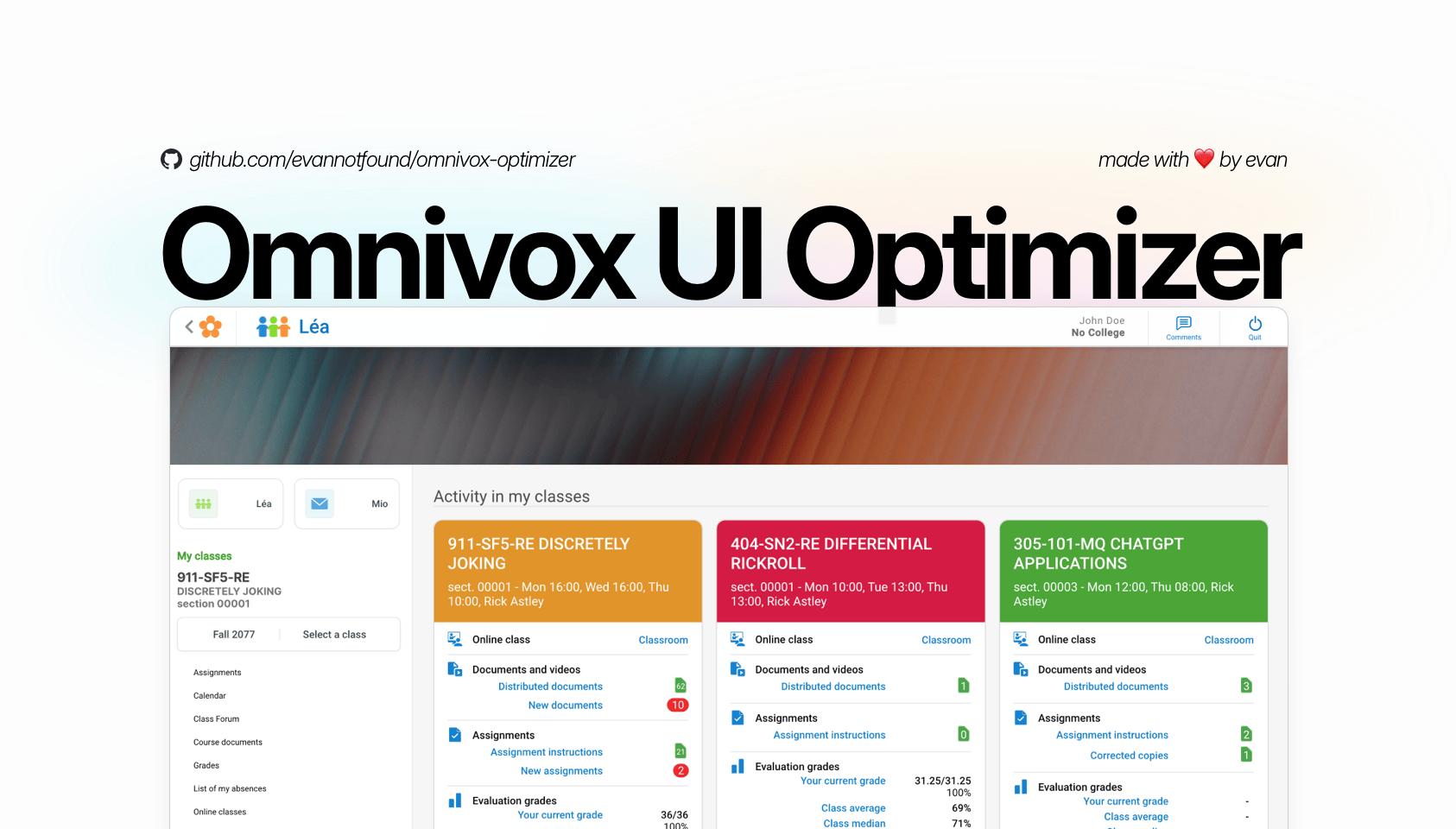
Omnivox UI Optimizer

A simple user script to improve the UI of Omnivox.
Du musst eine Erweiterung wie Tampermonkey, Greasemonkey oder Violentmonkey installieren, um dieses Skript zu installieren.

You will need to install an extension such as Tampermonkey to install this script.

You will need to install an extension such as Tampermonkey or Violentmonkey to install this script.

You will need to install an extension such as Tampermonkey or Userscripts to install this script.

You will need to install an extension such as Tampermonkey to install this script.

Sie müssten eine Skript Manager Erweiterung installieren damit sie dieses Skript installieren können

(Ich habe schon ein Skript Manager, Lass mich es installieren!)

You will need to install an extension such as Stylus to install this style.

You will need to install an extension such as Stylus to install this style.

You will need to install an extension such as Stylus to install this style.

You will need to install a user style manager extension to install this style.

You will need to install a user style manager extension to install this style.

You will need to install a user style manager extension to install this style.

(I already have a user style manager, let me install it!)

Autor
evannotfound
Installationen heute
0
Installationen gesamt
12
Bewertungen
0 0 0
Version
1.3.23
Erstellt am
21.11.2024
Letzte Aktualisierung
20.01.2026
Größe
103 KB
Lizenz
GPL-3.0
Wird angewandt auf

Readme Banner

Omnivox UI Optimizer

A simple user script to improve the UI of Omnivox.

Source Code: https://github.com/evannotfound/omnivox-optimizer

Author: EvanNotFound

Installation Guide

1. Install a UserScript Manager

For Chrome/Firefox:

For Safari:

  • Install Userscripts from the App Store
  • After installation:
    1. Enable the extension in Safari (Settings > Safari > Extensions)
    2. Set "Allow" permissions for "All Websites" for optimal experience

2. Install the Script

For Chrome/Firefox:

  • Click here to install the latest version
  • Your userscript manager will open showing the script details
  • Click the "Install" or "Confirm installation" button

For Safari:

  1. Click here to access the script
  2. Click the Userscripts extension icon in Safari's toolbar
  3. If prompted, allow Userscripts to access the webpage
  4. Click "Click to install" in the extension popup

  5. Verify Installation

    • Go to any Omnivox page
    • You should see the improved UI automatically
    • If not, try refreshing the page

Features

  • Modern, clean interface
  • Improved navigation
  • Better readability
  • Custom course colors
  • Optimized document viewing

License

This project is licensed under the GPL-3.0 license. See the LICENSE file for details.

Disclaimer

This is an independent, user-created enhancement tool. This project is not affiliated with, endorsed by, or connected to Skytech or any of its products, including Omnivox. The creator(s) of this tool cannot be held liable for any issues that may arise from its use. Skytech and Omnivox are trademarks of their respective owners. Use at your own risk and discretion.