Quick-Text-Buttons

Adds customizable buttons to paste predefined text into the input field on ChatGPT/Gemini.

スクリプトをインストールするには、Tampermonkey, GreasemonkeyViolentmonkey のような拡張機能のインストールが必要です。

You will need to install an extension such as Tampermonkey to install this script.

スクリプトをインストールするには、TampermonkeyViolentmonkey のような拡張機能のインストールが必要です。

スクリプトをインストールするには、TampermonkeyUserscripts のような拡張機能のインストールが必要です。

このスクリプトをインストールするには、Tampermonkeyなどの拡張機能をインストールする必要があります。

このスクリプトをインストールするには、ユーザースクリプト管理ツールの拡張機能をインストールする必要があります。

(ユーザースクリプト管理ツールは設定済みなのでインストール!)

このスタイルをインストールするには、Stylusなどの拡張機能をインストールする必要があります。

このスタイルをインストールするには、Stylus などの拡張機能をインストールする必要があります。

このスタイルをインストールするには、Stylus tなどの拡張機能をインストールする必要があります。

このスタイルをインストールするには、ユーザースタイル管理用の拡張機能をインストールする必要があります。

このスタイルをインストールするには、ユーザースタイル管理用の拡張機能をインストールする必要があります。

このスタイルをインストールするには、ユーザースタイル管理用の拡張機能をインストールする必要があります。

(ユーザースタイル管理ツールは設定済みなのでインストール!)

このスクリプトの質問や評価の投稿はこちら通報はこちらへお寄せください
作者
p65536
1日のインストール数
0
累計インストール数
27
評価
0 0 0
バージョン
3.0.0
作成日
2025/08/05
更新日
2026/01/14
大きさ
317KB
ライセンス
MIT
対象サイト

Overview

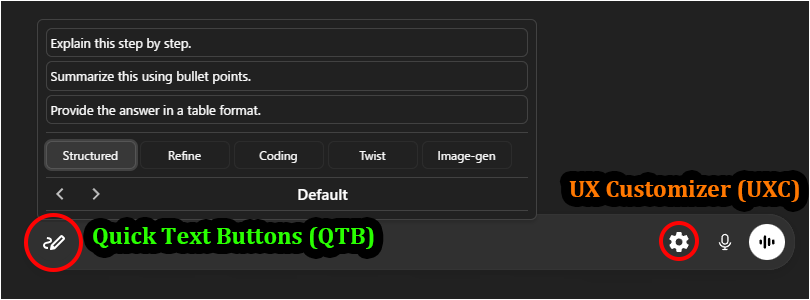
Quick-Text-Buttons (QTB) is a utility script that adds customizable buttons to quickly insert predefined text into the input fields of AI services like ChatGPT and Gemini. You can efficiently manage and utilize frequently used instructions and prompts by organizing them into "profiles" and "categories."

Currently, it supports the following AI services:

  • ChatGPT
  • Gemini

Recommended Companion:
Pair this with UX Customizer (UXC) for a complete UI overhaul.
QTB optimizes Input, while UXC optimizes UI & Navigation—together, they provide the ultimate chat experience.

Key Features

  • Streamlined UI integrated into the input area
  • Enhanced Text Editor with Drag & Drop reordering
  • Keyboard shortcuts (Alt+Q) and full keyboard navigation support
  • Real-time settings synchronization across multiple tabs
  • Manage registered text by classifying it into "profiles" and "categories"
  • Switch between profiles (sets of categories) to use text sets tailored for different purposes
  • Specify the insertion position of the text (cursor position / start / end)
  • Option to automatically insert a newline before or after the text
  • Settings export/import functionality (in JSON format)
  • Includes sample settings, making it easy to get started.

Screenshots (Images are for ChatGPT)

Quick Text Buttons Showcase Image

  • Perfect Match: Works seamlessly with UX Customizer ( ChatGPT / Gemini ) to enhance the visual interface and navigation.

Visual Guide & Usage

1. Access & Navigation

The Quick Text button (pen icon) is located at the bottom-left of the chat input field.
Hover (or Click, depending on settings) over the button to open the list.
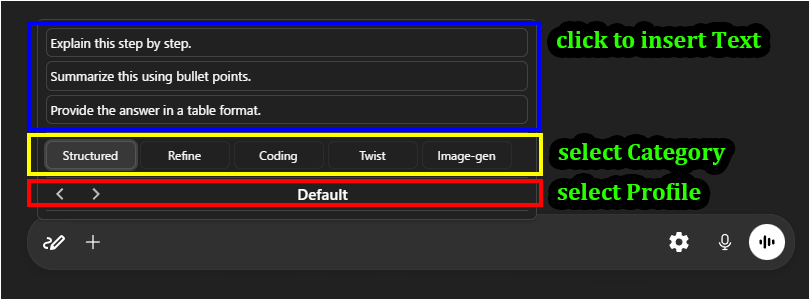
Text List Navigation

  • Text: Click an item to insert it directly into the input field.
  • Category: Switch tabs to view different groups of texts.
  • Profile: Switch profiles to load a completely different set of texts.

Keyboard Shortcuts:

  • Alt + Q: Quickly toggle the text list.
  • Arrow keys: Navigate through the list.
  • Enter/Space/Tab: Insert the selected text.
  • Ctrl + Arrow keys: Switch profiles.

2. Settings & Customization

  • Settings: Right-click the button to open the Settings Panel, where you can edit texts, manage profiles, and change options.
  • Import/Export: If needed, use the "JSON" button in the settings panel to export your current settings or import sample settings.

Sample Settings

The easiest way to get started is to download a sample file from the samples folder and modify its contents to your liking.
Please import the sample JSON via the script's settings screen (JSON modal).


More info

Full Guide & Details on GitHub:


This script is open-source and licensed under the MIT License.