Format a webpage on Stack Enchange websites such as stackoverflow.com so that web clippers can save a pretty webpage containing only the content you need.
Although there are many web clippers such as Joplin Web Clipper that can automatically save important content in webpages, the clipped content may still contain irrelevant information and usually looks ugly. This user-script reformats a webpage on Stack Exchange websites like Stack Overflow, so that you can use a web clipper to save a pretty webpage containing only the information you need.
This script can save three types of content, including questions, answers and comments.
To save a particular answer, click the save this answer link at the bottom left of the answer.
To save a particular answer along with the question, click save this Q&A.
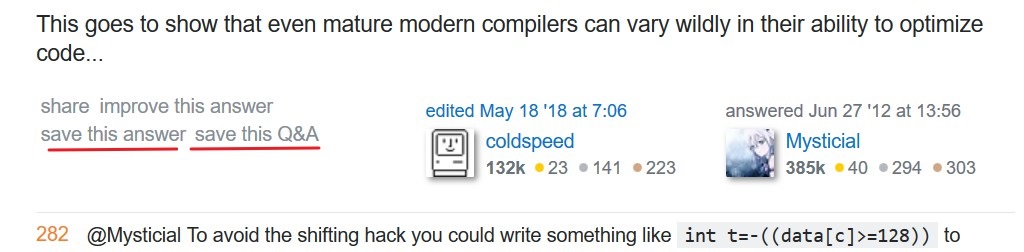 Whether the comments would be saved is controlled by the checkbox Save Comments by Default described later.
To have a more fine-grained control over the information you want to save, click the Advanced Save button next to the Ask Question button.

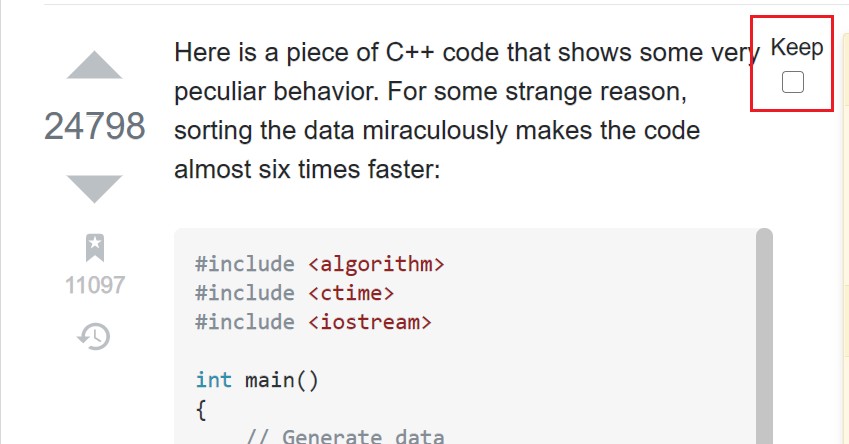
For each question, answer or list of comments you want to save, select the checkbox at the top-right corner of the corresponding content.
A dialog floating at the right of the webpage provides two checkboxes to quickly select/unselect all posts/comments, i.e., the Select All Posts and Select All Comments checkboxes.
Note that all posts include both the question and all answers.
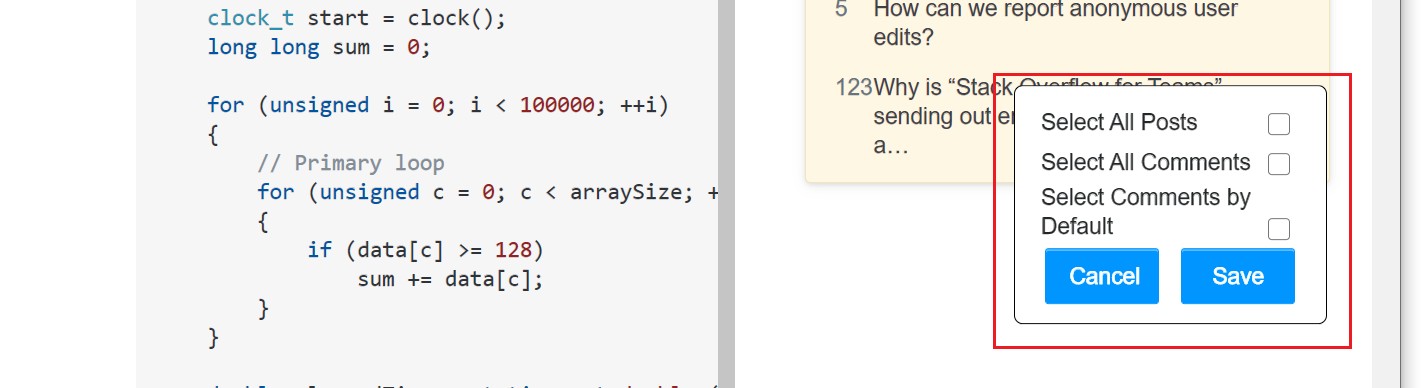
When you are done with selecting the parts to be saved, click the Save button at the floating dialog.
The Select Comments by Default checkbox determines whether the comments of a post will be saved when save this answer or save this Q&A is clicked. If it is checked, then the comments of a post will also be saved when the post is saved.
