
What are user scripts?
User scripts put you in control of your browsing experience. Once installed, they automatically make the sites you visit better by adding features, making them easier to use, or taking out the annoying bits. The user scripts on Greasy Fork were written by other users and posted to share with the world. They're free to install and easy to use.
Step 1: install a user script manager
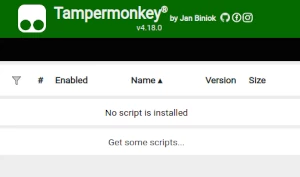
To use user scripts you need to first install a user script manager. Which user script manager you can use depends on which browser you use.
Desktop Mobile (Android) Mobile (iOS)
- Chrome: Tampermonkey
- Firefox: Greasemonkey, Tampermonkey, or Violentmonkey
- Safari: Tampermonkey or Userscripts
- Microsoft Edge: Tampermonkey
- Opera: Tampermonkey or Violentmonkey
- Maxthon: Violentmonkey
- AdGuard: (no additional software required)
- Firefox: Greasemonkey, Tampermonkey, or Violentmonkey
- Microsoft Edge: Tampermonkey
- Maxthon: Violentmonkey
- Dolphin: Tampermonkey
- UC: Tampermonkey
- XBrowser
- EinkBro
- Safari: Tampermonkey or Userscripts
- Gear: (no additional software required)
- Teak: (no additional software required)
Step 2: install a user script
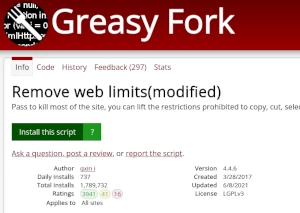
Browse this site to find a user script you want to try. Here is a sample of the most popular scripts:
- Geoguessr Blink Mode - Shows the round briefly, then screen goes black and you have unlimited time to make your guess.
- evoworld.io Cheats - "evoworld.io Cheats"
- ✅ RoVerify | Roblox Verification Badge - A simple script that adds the Roblox verification badge to your name.
- Advanced Skribbl.io Cheat GUI - Enhanced Cheat GUI for Skribbl.io
- NiceFont - NiceFont: Optimize web font display for clear, comfortable browsing! "Adjusts fonts directly, not page scaling—no compromises!" Modify font size & style, save settings, apply to all pages. Supports one-time, scheduled, or dynamic adjustments, for subdomains or globally. Works on nearly all sites!
Once you've found a user script, click the green install button on the user script's page, and your user script manager will ask you to confirm the install.
Step 3: use the user script
Go to the site the user script affects. It should automatically do its thing. After trying out the user script for a while, go back to where you installed the user script and leave some feedback for the user script's author.