Set a custom color and style for libib.com item status indicator and more
A simple UserScript for customization of Libib.com status indicator
[!WARNING] This project is an independent, third-party, open-source userscript created for personal use. It is not affiliated with, associated with, authorized, endorsed by, or in any way officially connected to Libib, or any of its subsidiaries or its affiliates. The official Libib website can be found at https://www.libib.com. All product and company names are trademarks™ or registered® trademarks of their respective holders. Use of them does not imply any affiliation with or endorsement by them.
The core logic, architecture, and overall development of this script are entirely my own work. However, I utilized AI tools as a coding assistant to help optimize specific code snippets (such as the CSS generation and the Cloudflare Worker integration) and to refine the English text in this documentation, as English is not my native language.
Libib.com is a great website to keep track of your collection of books, CDs and other things. Unfortunately the status indicator's color selection is not great and this makes it hard to see if you already read a book or not.
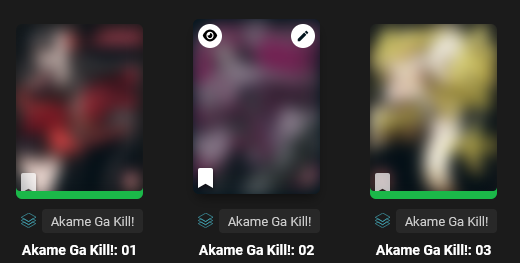
Here you can see a before and after:


Mirrors:

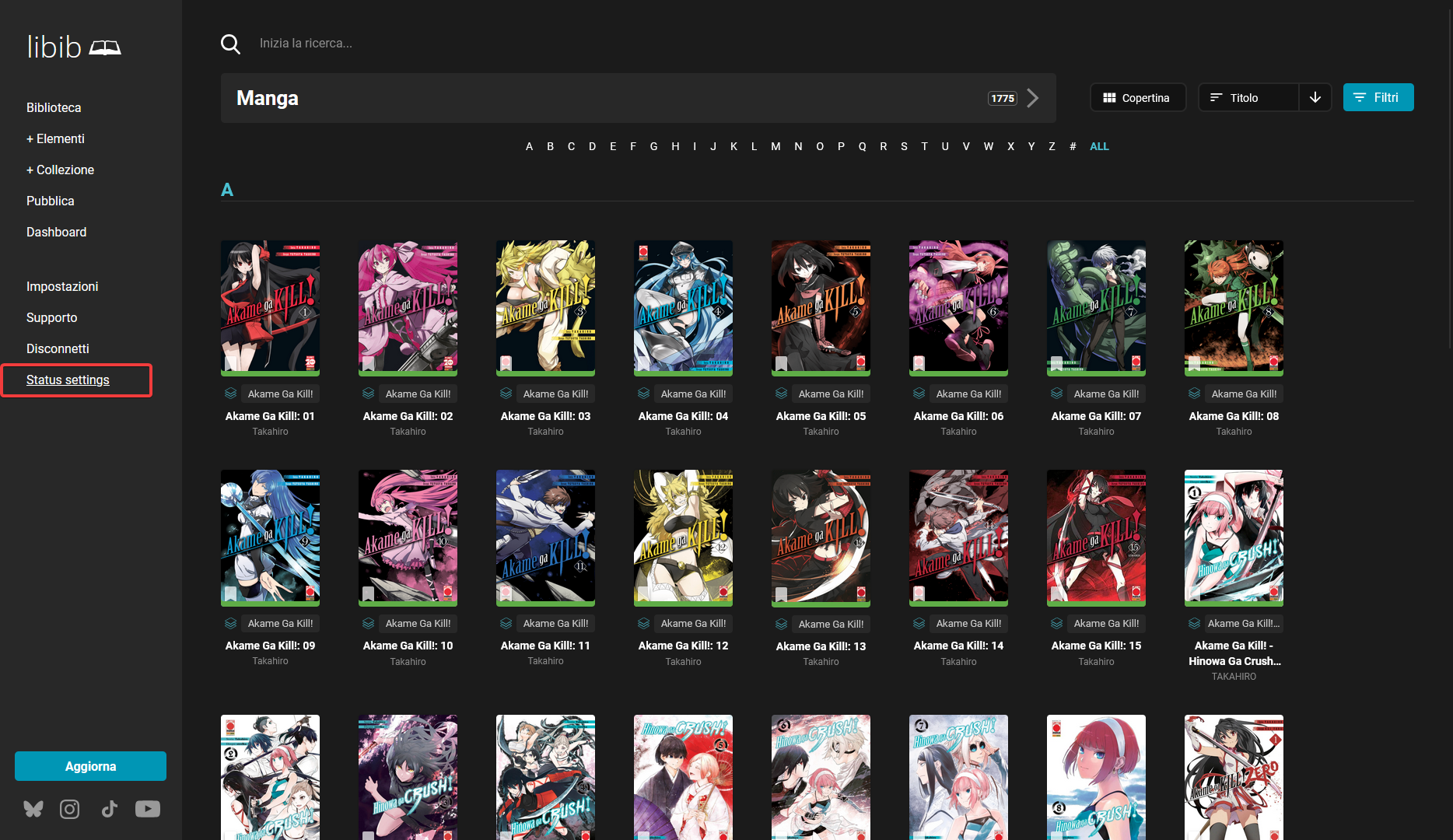
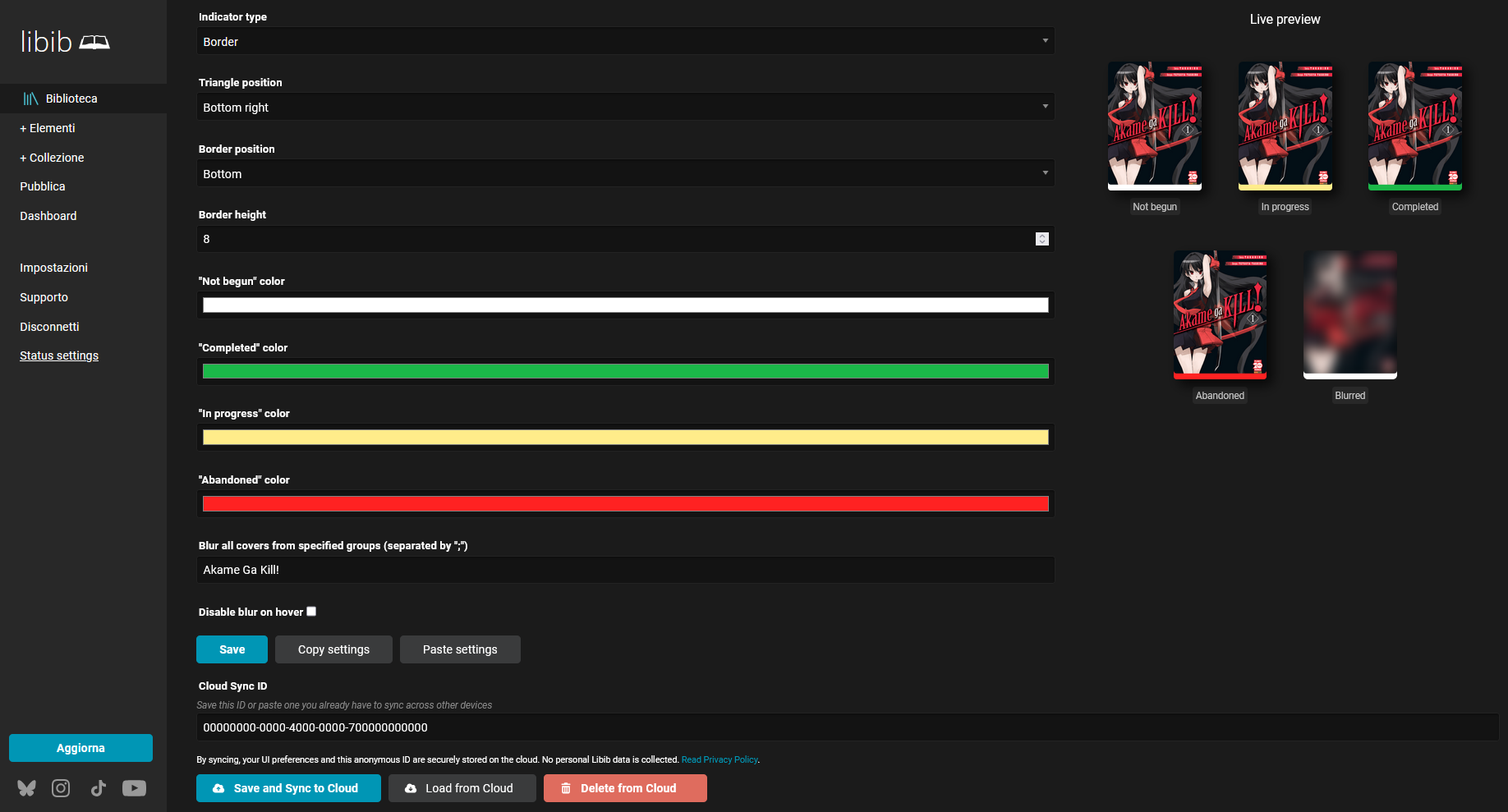
You can choose between Triangle (default) or Border, you can also choose the position of the indicator. If you choose the Border style, you can also choose the thickness
Here are all the possible combinations:

In addition, you can also blur the cover of specific series (also known as groups). You can do this in two ways:

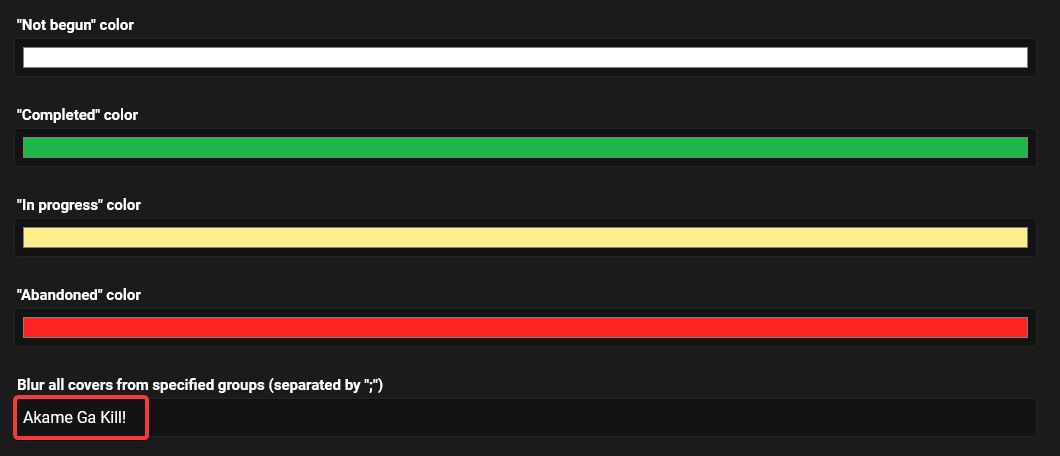
Note that this option will blur the entire series
There are two ways to transfer your settings across devices:
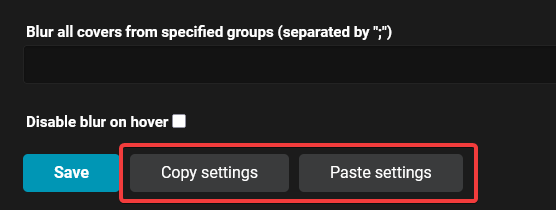
The first method is by using the "Copy settings" button. This will copy a JSON object to your clipboard. Then, on another device, use the "Paste settings" button to apply the settings.
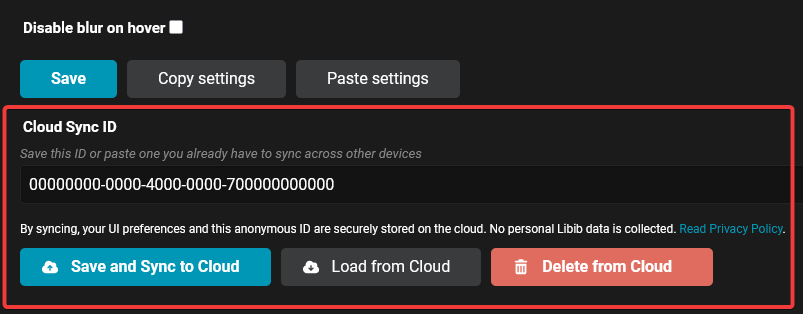
The second method is through the Cloud Sync feature: Upon first use, a unique ID will be generated. You can upload your settings using the "Save and Sync to Cloud" button and download them using the "Load from Cloud" button (Note: The Cloud Sync ID must match on both devices). If you ever wish to erase your data, the "Delete from Cloud" function is available.
Note: The synchronization feature is completely optional and will not activate without explicit user interaction. Before using it, please read our Privacy Policy.