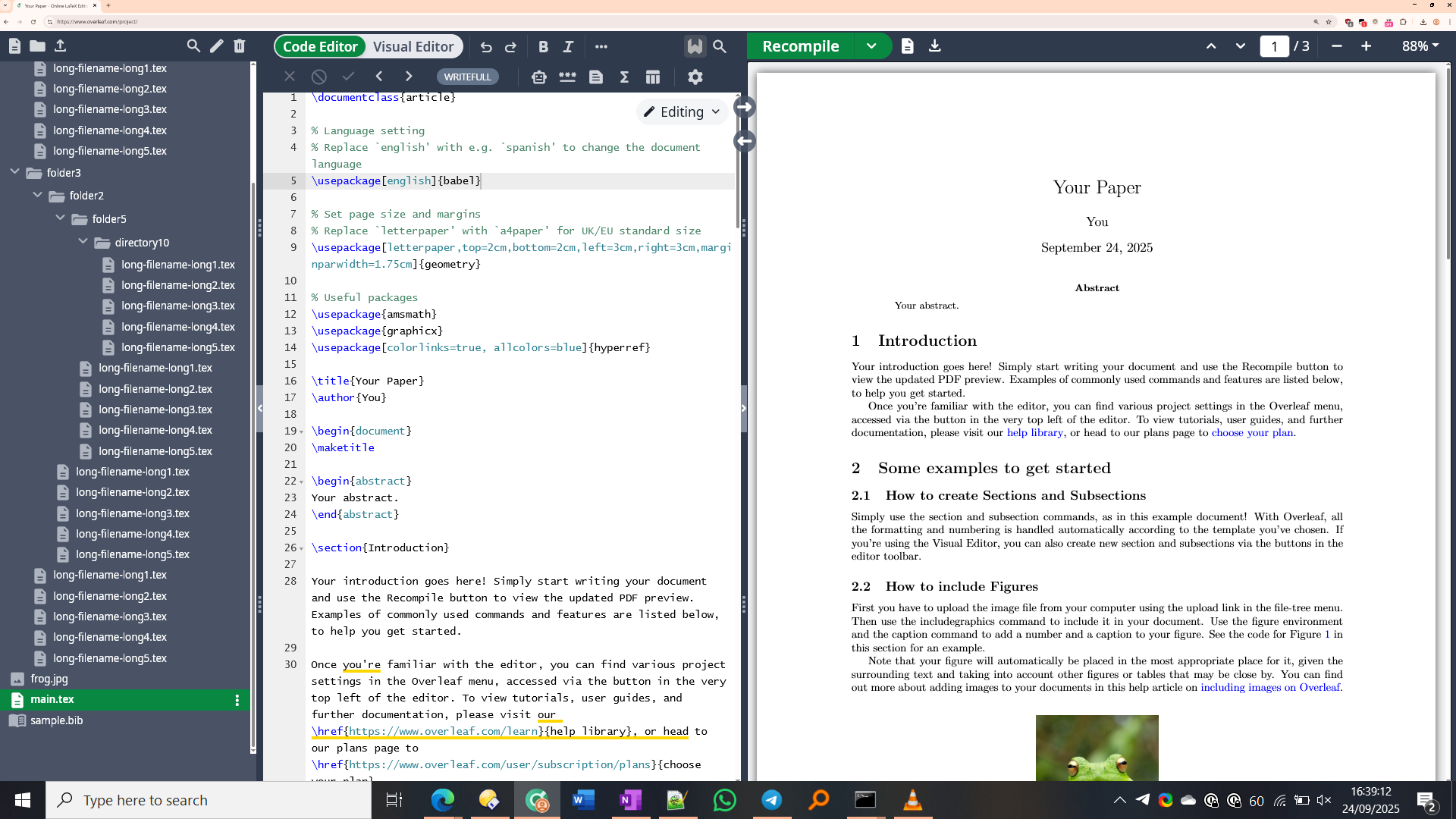
Overleaf Space Maximiser

(Requires Tampermonkey Legacy / MV2 on Chromium!) Auto-hide Overleaf top toolbar to maximise vertical space. Hover over that area to show it again. To optionally maximise horizontal space, you can optimise file tree/outline spacing and/or hide file outline to maximise horizontal space. Toggle with settings button in toolbar.

You will need to install an extension such as Tampermonkey, Greasemonkey or Violentmonkey to install this script.

You will need to install an extension such as Tampermonkey to install this script.

You will need to install an extension such as Tampermonkey or Violentmonkey to install this script.

You will need to install an extension such as Tampermonkey or Userscripts to install this script.

You will need to install an extension such as Tampermonkey to install this script.

You will need to install a user script manager extension to install this script.

(I already have a user script manager, let me install it!)

You will need to install an extension such as Stylus to install this style.

You will need to install an extension such as Stylus to install this style.

You will need to install an extension such as Stylus to install this style.

You will need to install a user style manager extension to install this style.

You will need to install a user style manager extension to install this style.

You will need to install a user style manager extension to install this style.

(I already have a user style manager, let me install it!)

Author
sjain329815723
Daily installs
0
Total installs
1
Ratings
0 0 0
Version
0.4.2
Created
2025-09-24
Updated
2025-10-03
Size
11 KB
License
MIT
Applies to

🛠 Overleaf Space Maximiser

Author: sjain882

Version: 0.4.2

Compatible Site: Any Overleaf project editor: https://www.overleaf.com/project/*

⚠️ Warning

  • If using Chromium, this userscript requires an MV2 UserScript manager, such as Tampermonkey Legacy
  • If using Firefox, any userscript manager will work fine.
  • Changing settings for this userscript will reload the page, so make sure your work is saved and you have a stable internet connection.

📌 What It Does

  • Auto-hides the top toolbar on Overleaf when its not being hovered over.
  • [Optional] Optimise spacing of file tree by reducing font size (customisable) and removing horizontal padding.
  • [Optional] Remove file outline section to maximise the file tree and reduce visual clutter.

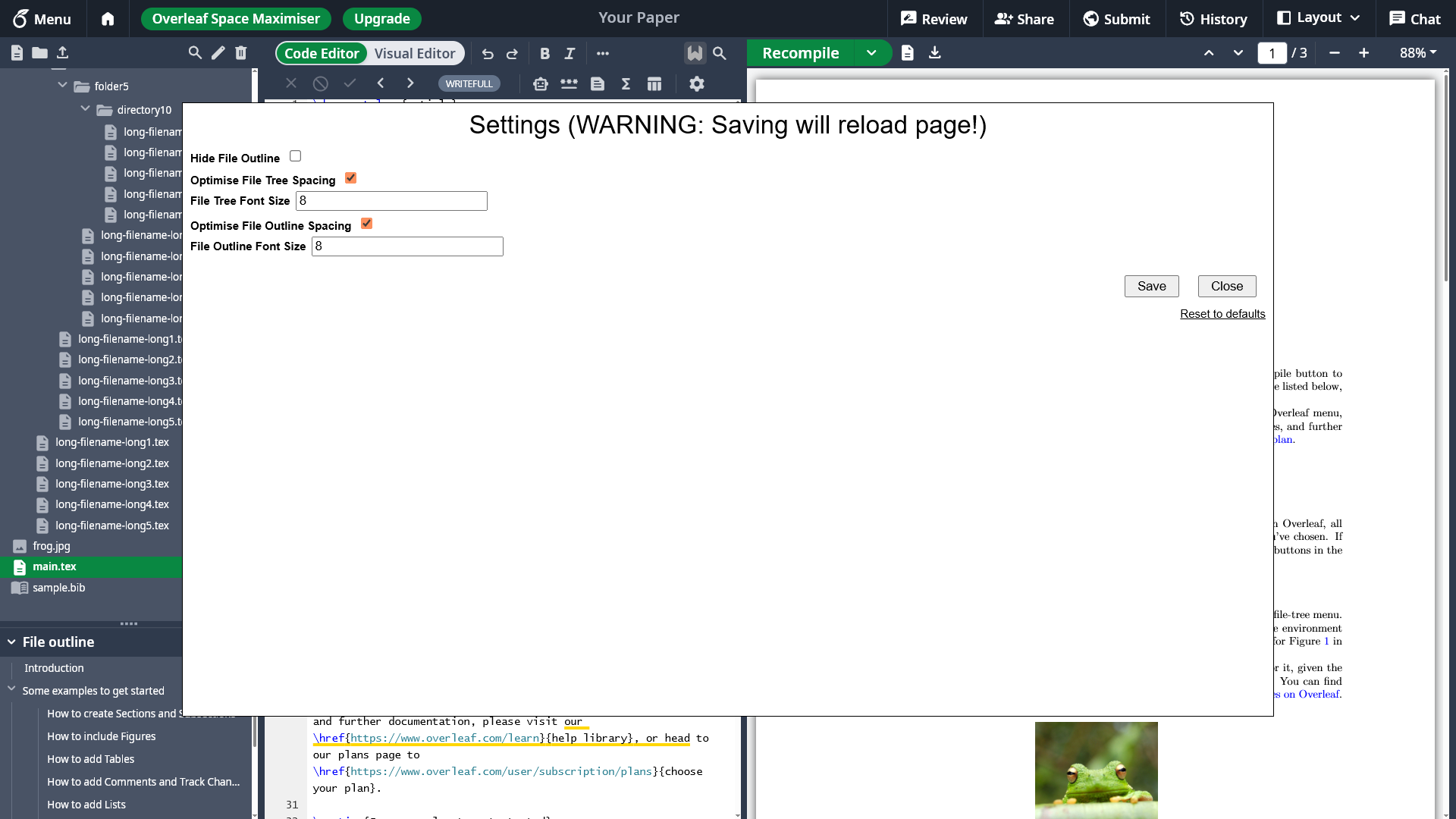
🛠 Accessing Settings

  1. Ensure your work is saved and you have a stable internet connection.
  2. Hover near the top of the page to show the top toolbar, then click the "Overleaf Space Maximiser" button.
  3. Change your settings, then click Save.
  4. The page will reload.

💡 Tip for laptop users with limited screen space

  • I combine this userscript with a dedicated Chromium (Edge/Chrome/Cromite/Opera etc) profile shortcut with the --profile-directory="<PROFILE>" -alt-high-dpi-setting=96 /high-dpi-support=1 /force-device-scale-factor=0.5 arguments (from here) to maximise vertical space
  • I do this as I only use Overleaf in this browser profile, so no need to access tab/URL bar.
  • This effectively creates an almost-fullscreen dedicated Overleaf app - very useful for small laptop screens.
  • For Firefox based browsers, you can use layout.css.devPixelsPerPx in about:config with a separate profile.

🔗 Project Links

🖼 Previews

The below images were captured on a 14" 1920x1080 laptop screen at 125% Windows DPI scaling.

Without userscript:
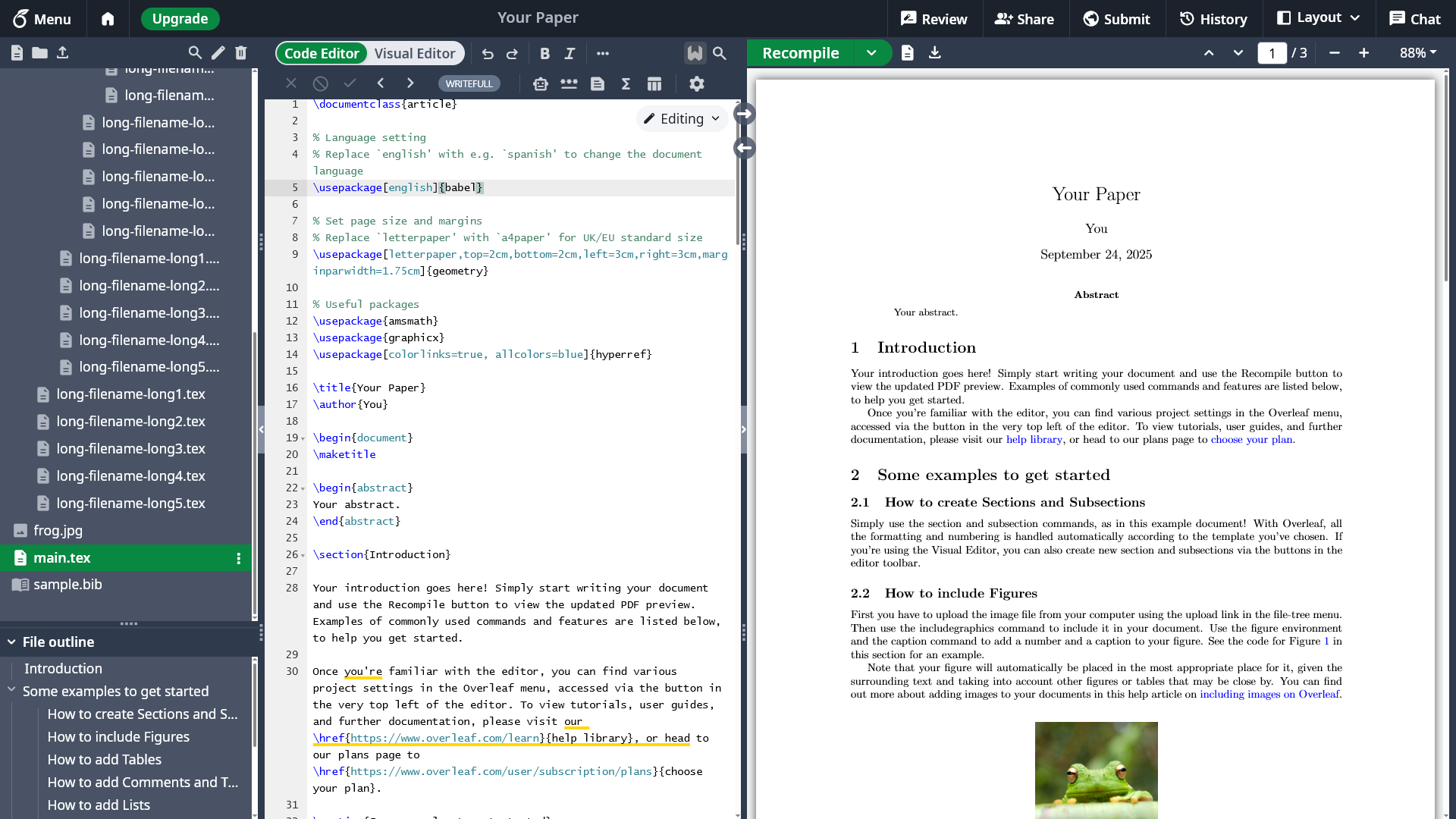


With userscript (file outline enabled + optimised):
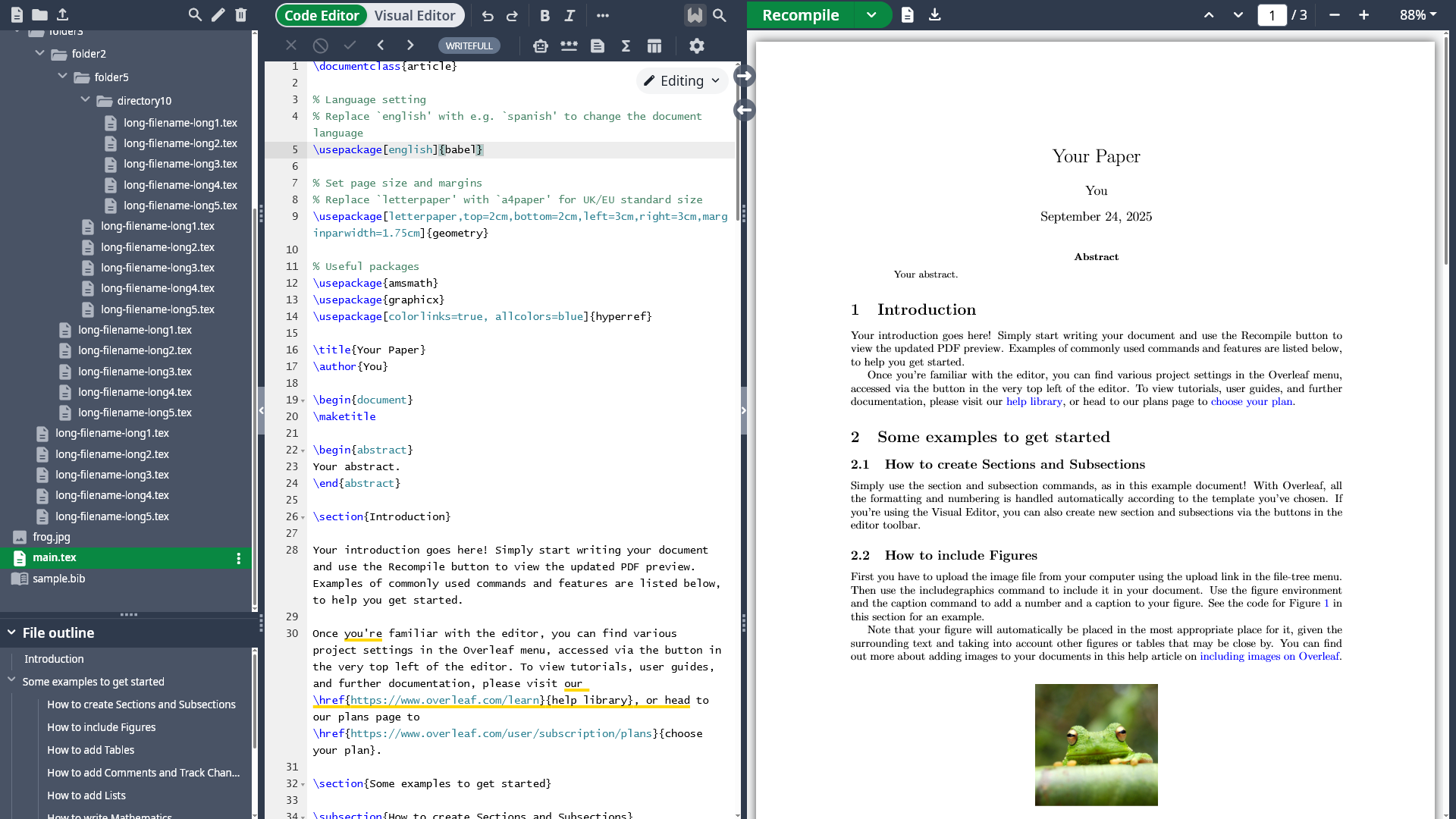


With userscript (file outline disabled):
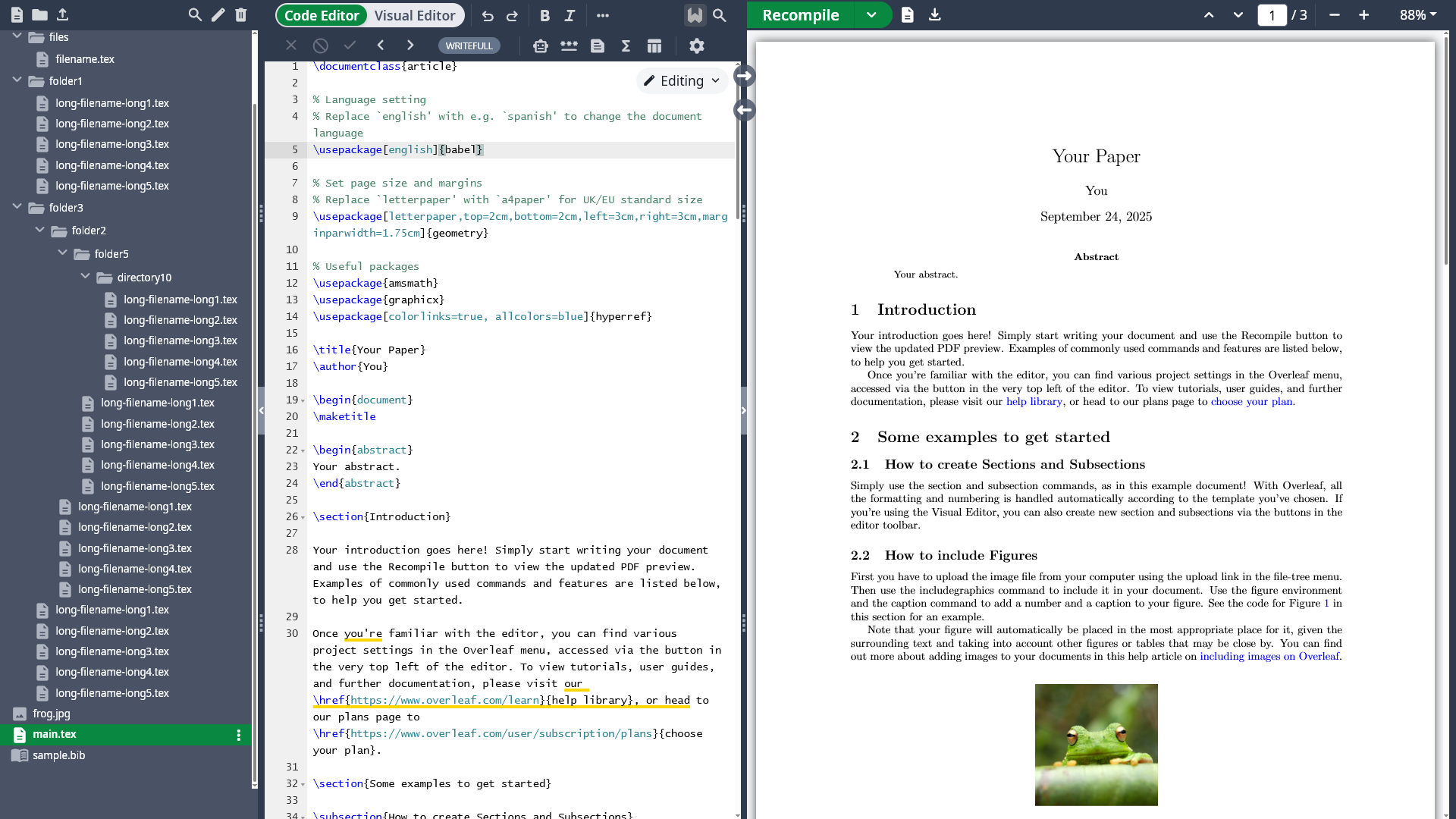


Settings:


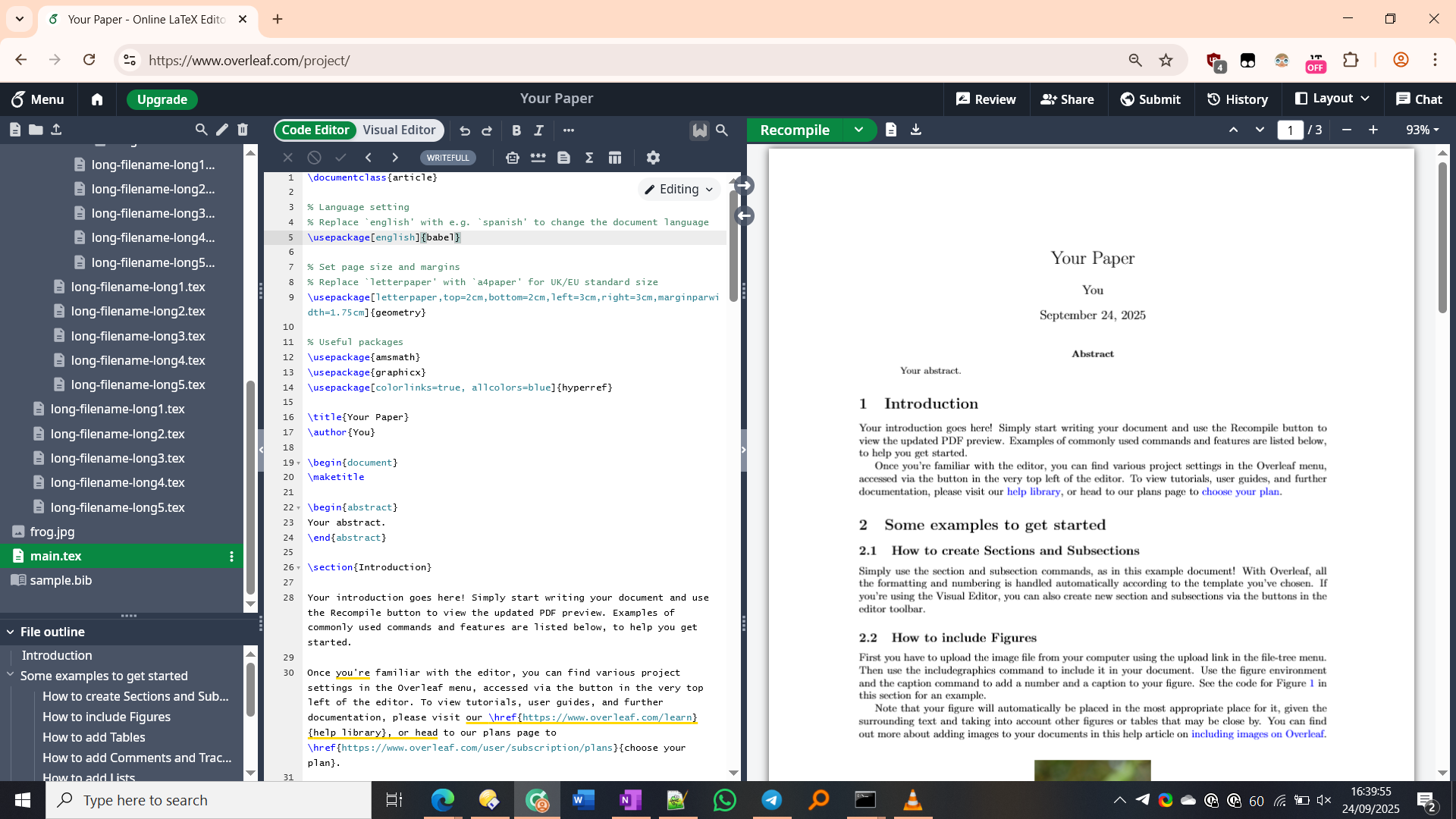
Bonus - my overall view with full vanilla settings:


Bonus - my overall view with userscript (file outline disabled) + Cromite DPI scaling tip from above: